How to Recover Deleted Files in TeraBox Easily (2026 Guide)
Accidentally deleted files in TeraBox? Learn how to recover deleted files in TeraBox from the Recycle Bin or backups with this easy 2026 guide.
If you want to recover deleted files in TeraBox,you are in the right place.Accidentally deleting an important file from TeraBox is more common than you think. One wrong tap and your photo, video, or document disappears from view.If you are thinking about removing your account instead, you can delete your TeraBox account permanently.
The good news is that TeraBox has built-in recovery options that make it possible to get your files back quickly, as long as you act before the recovery window closes.You can also learn how to upload documents on TeraBox to keep your files safely stored.
This guide walks you through every recovery method available in 2026, from the simplest Recycle Bin restore to advanced options for permanently deleted files. You will also find practical tips at the end to prevent this from happening again.
How to Recover Deleted Files in TeraBox: What Happens First
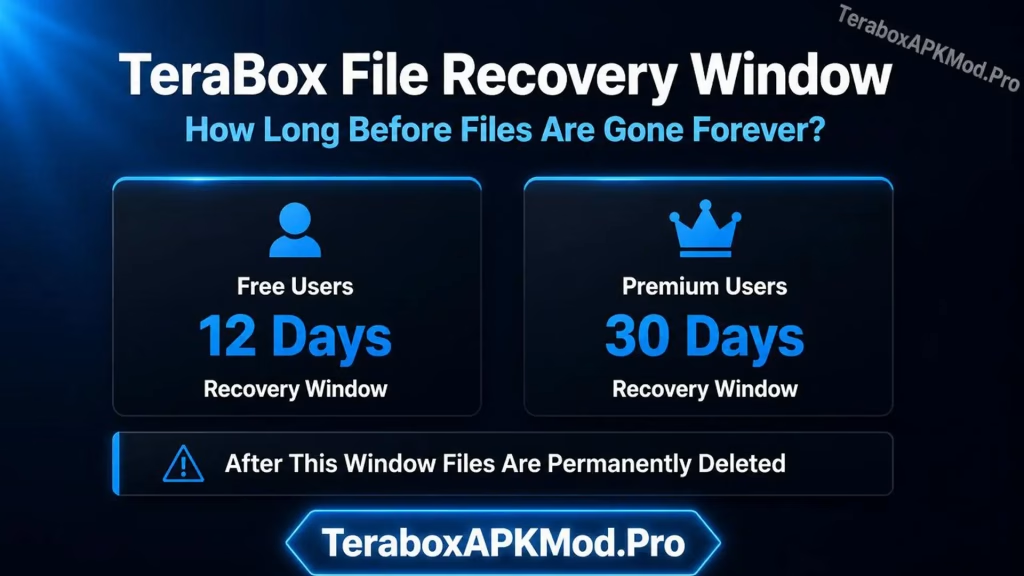
When you delete a file in TeraBox, it does not disappear immediately. Instead, it moves to the Recycle Bin, which works like a safety net before permanent deletion. Free users get a 12-day recovery window, while Premium users get up to 30 days before files are automatically removed from the server. For full details visit TeraBox Help Center.
Understanding this system is important because it defines how quickly you need to act. If your file was deleted recently, recovering it is straightforward.You can also check our is TeraBox safe guide to understand how TeraBox handles your data. If it has been sitting in the Recycle Bin for longer than your plan allows, you will need to try the advanced methods covered later in this guide.
How to Recover Deleted Files from the TeraBox Recycle Bin
This is the fastest and easiest way to recover deleted files in TeraBox.If your file was deleted within the last 12 to 30 days, follow these steps.
- Open the TeraBox app on your phone or visit the TeraBox website on your computer.
- Log in to your account and go to the Files section.
- Look for the Recycle Bin folder, tap on it, and browse through the deleted files listed there.
- Then Select the files you want to restore and tap Recover.
- Your files will return to their original location in your main storage immediately.
This method works for both mobile and desktop users and does not require any technical knowledge. If your files are in the Recycle Bin, this is all you need to do.
How to Recover Permanently Deleted Files in TeraBox
If your files are no longer in the Recycle Bin, the recovery process requires a different approach. These methods do not guarantee full recovery, but they give you the best chance of getting your data back.
Check Linked Cloud Accounts and Backup Sync
If you connected TeraBox with Google Drive or enabled Backup Sync at any point, your files may still exist in those linked backups. Open your connected accounts and check the backup folders before assuming the files are gone. Many users find their files here even after they have been deleted from TeraBox itself.
Contact TeraBox Support
If your files were recently deleted or your account is on a Premium plan, TeraBox support may be able to help. Support representatives can sometimes access server logs and assist with recovery for files that were removed within a short window. Reach out through the app or the official website and provide as much detail as possible about the deleted files.
Use Third-Party File Recovery Tools
If you had the files stored locally on your device before uploading them, recovery tools like DiskDigger, Recuva, or EaseUS can scan your phone or computer storage for cached or temporary versions of those files. This method works best when used quickly after deletion, before the storage space is overwritten by new data.
Prevent Losing Files You Cannot Recover Deleted Files in TeraBox Agai
Recovering deleted files is stressful and not always possible. Setting up these five habits takes less than two minutes each and protects your data permanently.
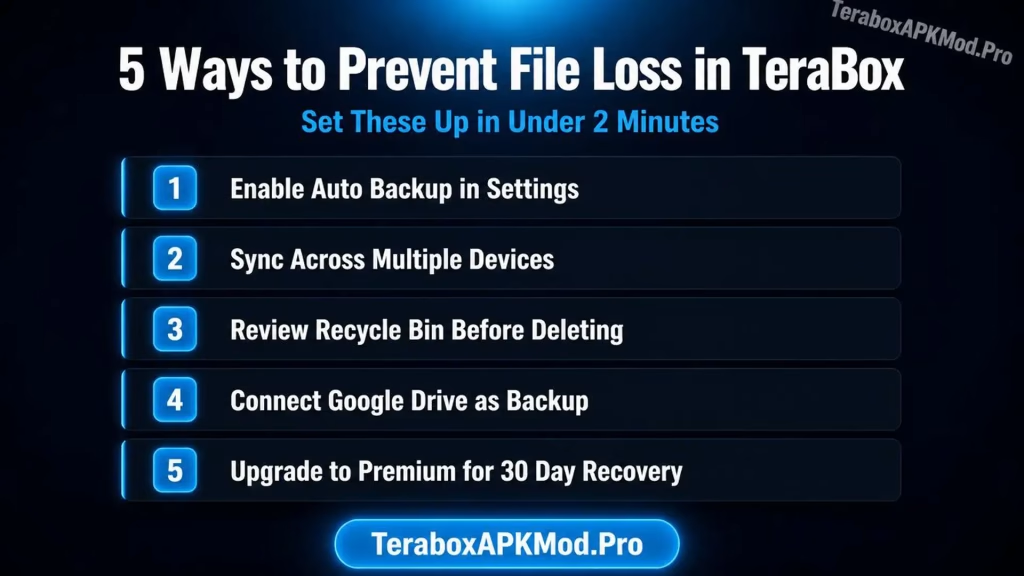
- Enable Auto Backup in Settings: Open TeraBox settings and turn on Auto Backup so your photos, videos, and documents upload to the cloud automatically. This means even if you accidentally delete a file, a backup copy already exists in your storage. Most users skip this step and regret it later.
- Sync TeraBox Across Multiple Devices
Install TeraBox on your phone, tablet, and computer and keep all devices logged in. When your files exist across multiple devices, losing them from one place does not mean losing them forever. This single habit eliminates the most common cause of permanent file loss. - Always Review Recycle Bin Before Deleting
Before you tap “Empty Recycle Bin,” scroll through everything inside it first. A two-second check can save you hours of recovery attempts later. Many users permanently delete important files by emptying the bin without looking. - Connect Google Drive as a Backup Source
Link your Google Drive account inside TeraBox settings to create a secondary backup layer. If TeraBox files are deleted beyond the recovery window, your Google Drive backup becomes your last safety net. Two cloud sources are always better than one. - Upgrade to Premium for a 30-Day Recovery Window
Free users only get 12 days to recover deleted files while Premium users get 30 days. That extra 18 days has saved thousands of users from permanent data loss. If you store important files on TeraBox, Premium is worth every penny.
Conclusion
The process to recover deleted files in TeraBox is manageable.The Recycle Bin handles most recovery cases simply and effectively. For files that have been permanently removed, checking linked backups, contacting support, and using local recovery tools are your best options.
Going forward, enabling Auto Backup and keeping TeraBox synced across devices will protect you from facing this situation again. A few minutes of setup now is worth far more than hours of trying to recover lost files later.
